The principle behind this page is to view golf courses in a geographic region and then select a candidate. From there a second page that gives you further detail on the course is shown.
Coming back to this page. When no venue has been previously selected, the page looks like that shown below:
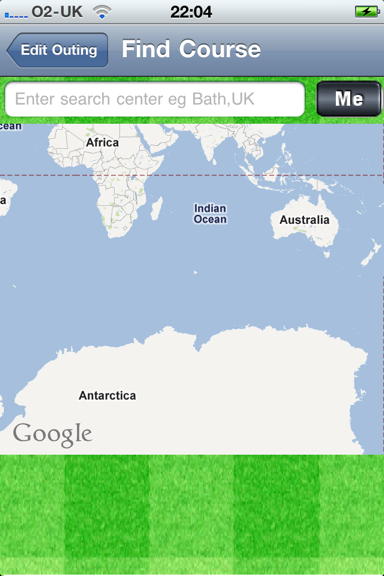
At the top is an edit box where you can enter a world location to start your search from.
As you enter the location (after the 4th character) a drop down appears giving you possible options.
In the example belowI want to search around Sydney Australia:
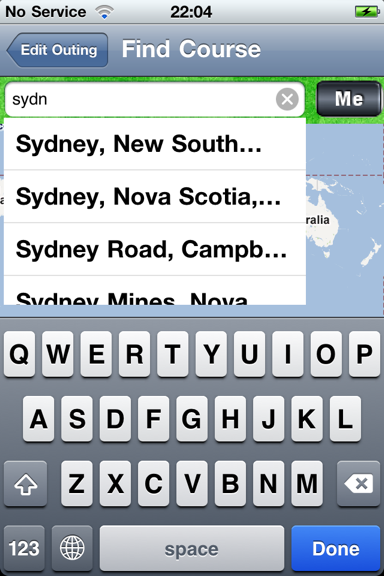
As you reach the fourth character and beyond, the drop down list gives you possible options.
To select an option you tap on the relevant entry in the drop down box, once you do this the map moves to center on that location as seen below:
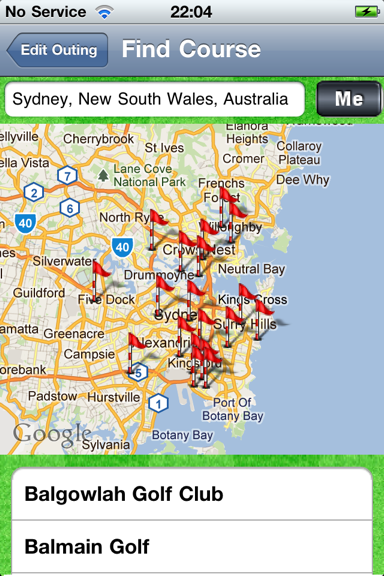
Each possible is shown as a golf flag on the map and in the scrollable list at the bottom of the screen.
You can zoom in/out or scroll the map, if you leave the map at a new center point for a period (circa 1s) the App will fetch other possible courses and add them to the map display and the list.
You can click either on a flag or on an item in the list, either causes a pop up to appear as shown below.
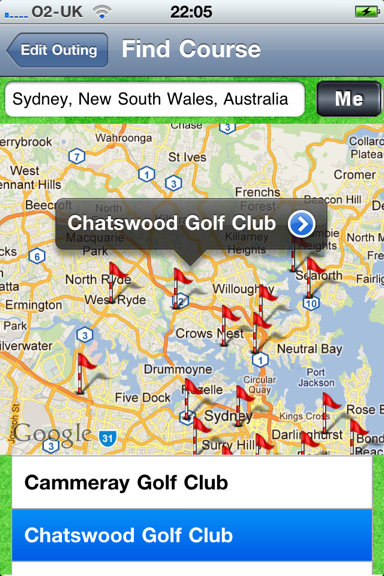
If this is a possible venue, clicking on the > symbol takes you to the Course Detail page.
If your venue is near your current physical location, tapping on the Me button will cause the map to center on your current location and display possible courses:
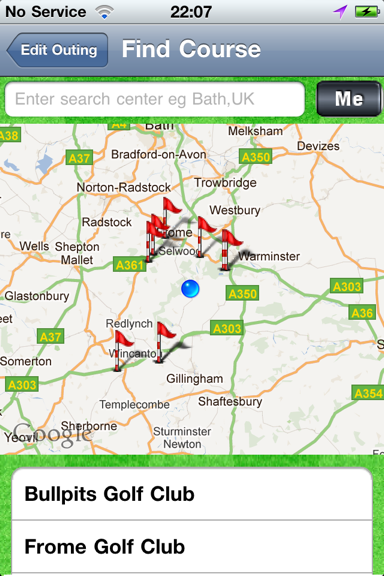
You are then at liberty to scroll and zoom as before.
If you have Location Services turned off on your device, the Me option is disabled as shown below:
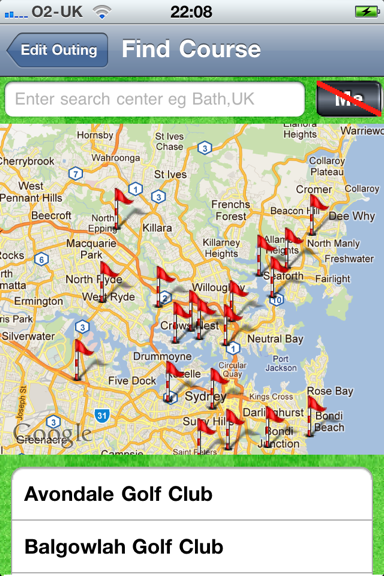
To exit this page you use the back “Edit Outing” button to return, without allocating a new course.
If a course is already selected for an outing and you tap the
 icon, the map will center on the currently selected course by default.
If you enter this page while viewing a locked (read only) outing, no other courses are shown and tapping Me will show a relative position between yourself and the selected course:
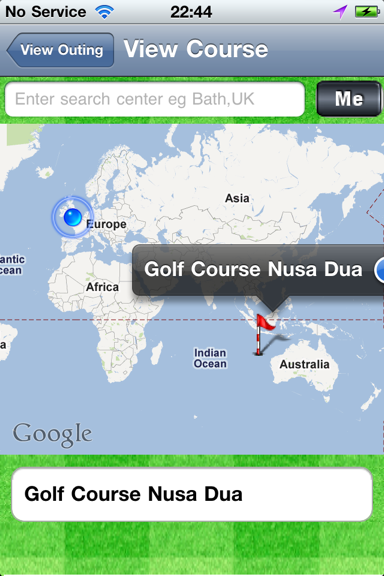
Tapping the “View Outing” back arrow takes you back to the Edit Outing page.